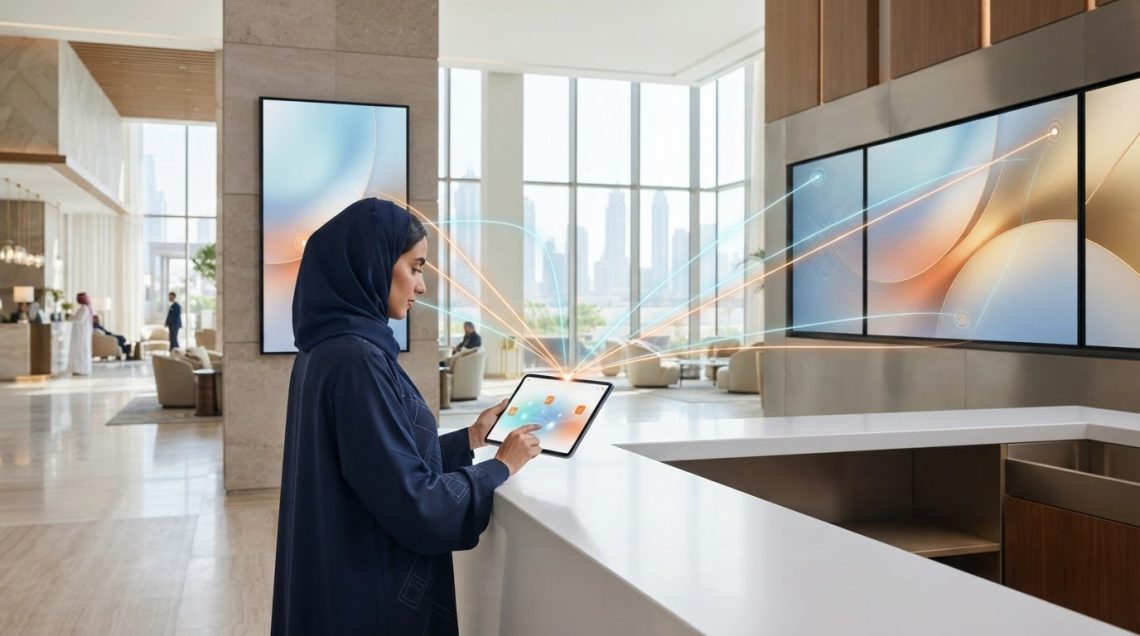
Brand consistency across branches depends on central control, not identical content on every screen. To understand how to manage content on multiple digital screens, organize displays by location and group, schedule shared playlists in a cloud-based content management system (CMS), and tailor approved content to each branch. Monitor playback and delivery centrally so updates stay aligned across the network.
Managing screens across branches involves more than publishing the same message everywhere. Local schedules and audience needs may differ, while brand standards still need to hold. This guide explains how to structure screen groups, plan and deploy content, and maintain a consistent identity while leaving room for local relevance. It also covers how cloud infrastructure supports remote management and what to monitor as your network grows.
Key Takeaways
- Build schedules around when each screen needs to communicate, then use playlists and bulk deployment to simplify routine updates.
- Organize displays by location and group so teams can assign relevant content and monitor delivery from a central platform.
- Set clear content roles and use approved templates to support local relevance while preserving a consistent brand identity.
- For hospitality and enterprise environments, ITSthe1 Solutions’ 1.DSMM – Digital Signage & Meeting Room offering is a relevant next step for digital signage requirements.
Automated content scheduling and deployment
Automate publishing with schedules, reusable templates, and bulk updates. Match each asset to its display, location, and purpose.
-
Upload and Format Content for Each Screen
Prepare assets for each screen size and orientation before uploading. Preview text, images, and layout on the target display, then correct cropping or unreadable text before publishing. Label landscape and portrait files clearly. When deciding how to manage content on multiple digital screens, avoid assuming one file will display correctly everywhere.
-
Schedule Content by Time and Location
Build playlists around branch schedules and audience needs. For example, schedule breakfast content in the morning, lunch in the afternoon, and dinner in the evening. Assign each playlist to the relevant location or screen group. A practical approach to how to manage content on multiple digital screens is to separate shared campaigns from branch-specific messages.
- Use templates for recurring promotions and bulk tools for wider deployment. Test playlists and screen zones with a pilot group before publishing across the network. This can reveal timing, formatting, and assignment errors before they affect more displays.
- For public advertising in the UAE, establish the applicable permit and content requirements for the emirate and display location before scheduling publication. Build approval into the workflow so content is ready before its planned start time.
- Review audience engagement alongside playback and technical issues to assess performance. Compare results by playlist, location, and time period to guide content changes. Track device status, content versions, and connectivity in a dashboard, and set alerts for downtime or delivery failures.
Cloud-based CMS and CDN infrastructure
Use a cloud CMS to organize content centrally, then structure access and delivery around locations, groups, and individual screens.
-
Manage Screens from One Dashboard
Build a location hierarchy in the dashboard, such as country, city, branch, screen group, and individual display. For example, assign screens in Dubai and Abu Dhabi to separate city groups. Publish shared content across selected groups, then target local messages to specific branches. The European Union notes that IT administrators can run systems remotely and conduct bulk updates.
-
Monitor Screen Status and Resolve Issues
Use the dashboard to review each display’s connection, device status, and current playback. If a screen shows an outdated playlist, compare its content version with the intended deployment. For an interruption, inspect connectivity and assigned content before republishing. Set alerts for downtime and delivery failures so teams can identify affected displays and prioritize troubleshooting.
- Use role-based permissions to separate content creation, approval, and publishing. Give branch teams access only to the tasks they manage, while central administrators retain publishing oversight. Kiosk mode can restrict displays to their signage function, reducing opportunities for unauthorized changes. Keep audit logs so teams can review who changed or approved content.
- Use cloud and CDN infrastructure to coordinate content delivery across the screen network. Organize shared assets centrally, then assign content to locations, groups, or individual displays. This structure makes targeted updates easier to manage without changing unrelated screens. For connected signage and meeting-room requirements, explore digital signage and meeting-room solutions.
Brand consistency across branches
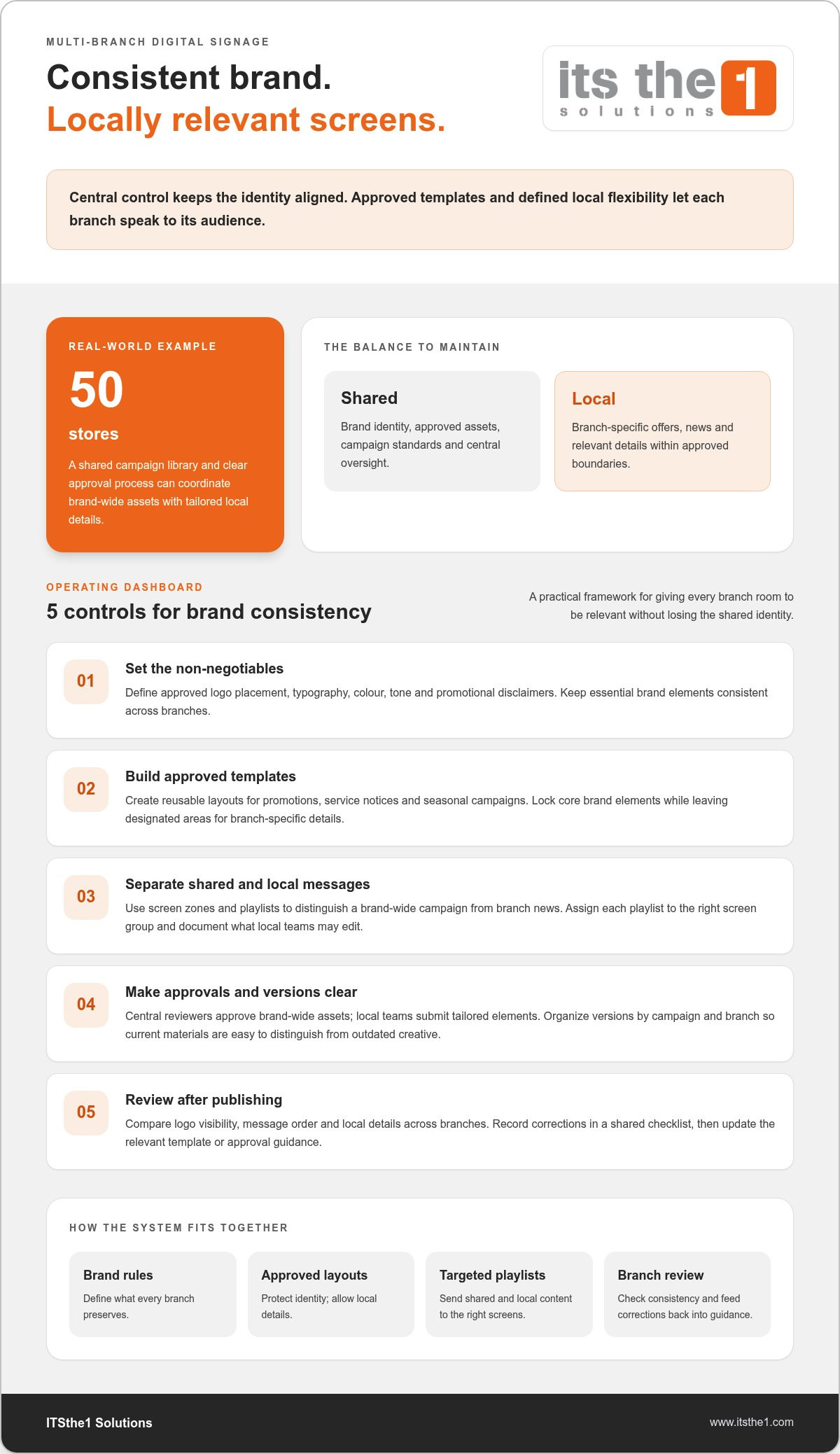
- Define the brand elements every branch must preserve. Set standards for approved logo placement, typography, colour, tone, and promotional disclaimers. For example, a retail chain can require consistent logo treatment while allowing each branch to feature locally relevant offers.
- Create centrally approved templates for recurring messages, such as promotions, service notices, and seasonal campaigns. Lock essential brand elements in each template, leaving designated areas for branch-specific details. This lets local teams adapt content without rebuilding layouts or changing the visual identity.
- Use content zones and playlists to separate shared messaging from local updates. A screen can reserve one zone for a national campaign and another for branch news. Assign each playlist to the appropriate screen group, and document which content local teams may replace or edit.
- For a retail chain with 50 stores, establish a shared campaign library and a clear approval process. Central reviewers can approve brand-wide assets, while local teams submit only their tailored elements. Keep versions organised by campaign and branch, so staff can distinguish current materials from outdated creative.
- Review displays across branches after publishing, comparing logo visibility, message order, and local details. Record corrections in a shared checklist, then update the relevant template or approval guidance. If consistent signage across branches is a priority, plan your digital signage requirements around shared standards and controlled local flexibility.
ITSthe1 Solutions: 1.TV – IPTV for Enterprise & Hospitality
ITSthe1 Solutions offers 1.TV – IPTV for Enterprise & Hospitality for organisations planning guest-facing television services. For projects that also require digital signage or meeting-room displays, 1.DSMM – Digital Signage & Meeting Room is a relevant offering to consider alongside it.
These solutions fit hospitality and enterprise environments where IPTV and signage form part of a broader screen strategy. Define the role of each display first, including whether it serves guest entertainment, branch communications, or meeting-room use. That clarity helps align the selected offerings with your operational requirements without treating every screen as the same use case.
To discuss your enterprise or hospitality screen requirements, contact ITSthe1 Solutions.
Make screen governance part of your operating model
A lasting screen strategy needs clear ownership beyond the initial rollout. Decide who maintains approved assets, reviews branch requests, and retires outdated campaigns. This gives teams a practical framework for adapting content as locations, services, and business priorities change. Map these responsibilities against your existing digital systems, then identify where integrated technology could support daily operations.
ITSthe1 Solutions offers 1.TV – IPTV for Enterprise & Hospitality and 1.DSMM – Digital Signage & Meeting Room for screen-related requirements, as well as 1.ID – Passport & ID Scanning. The right combination depends on the operational role each system needs to serve. If you’re deciding how to manage content on multiple digital screens across your organisation, contact ITSthe1 Solutions for support and discuss a considered next step for your screen strategy.
Frequently Asked Questions
What Is Multi-Location Digital Signage?
Multi-location digital signage is a network of displays managed for a business operating across separate sites. A retailer, hotel group, or university can use it to deliver coordinated information while adapting messages to each venue. The key is shared oversight: teams manage screen content as an organized network rather than treating every display as an isolated installation.
What hardware, software, and network setup is needed for multi-screen content management?
A digital signage setup needs compatible displays, a playback device or supported built-in player, content management software, and a network connection. Confirm that the display and player support the required media formats, resolution, and orientation. Assess network capacity for asset delivery, and plan power and physical placement. A pilot installation can reveal compatibility or connectivity issues before rollout.
How do you group screens by location and schedule content for each group?
Start with a naming structure that reflects how teams manage sites, such as country, emirate, branch, and area. Assign each display to the group that matches its operational purpose, such as reception or restaurant. Then set playlists for that group’s audience and opening pattern. Review group membership when screens move or branches change how they use them.
What are the best digital signage CMS platforms and how do their features compare?
The best CMS is the one that matches your network’s operational needs, not necessarily the one with the longest feature list. Compare location-based publishing, scheduling, media support, remote monitoring, user access controls, and reporting. Consider how easily teams can manage routine updates and diagnose delivery issues, then test representative workflows before selecting a platform.
What security and access controls should you use to manage digital signage screens?
Give each administrator an individual account, grant only the access their role requires, and remove permissions when responsibilities change. Protect dashboard access with strong authentication and restrict remote administration to approved users and devices. Keep records of publishing and account changes, review access regularly, and secure the network path between the CMS and screen players.